How to Use ChatGPT to Create Better Images for Your Business
You’ve got a business to run but finding time to design a Facebook post, update your website images or put together a decent flyer can easily slip down your list of things to do.
Thsats where AI tools such as ChatGPT can help you turn an idea into stunning visuals, and explore different designs without starting from scratch every time.
But if you’ve ever typed “make me an advert”, or "make me a facebook post" and received something weird, cluttered, generic or covered in strange wording, you’ll know that the instructions matter. In this guide, I’ll explain how to give AI a better design brief, where it can help your business and what to check before publishing.
Want the prompts ready to use?
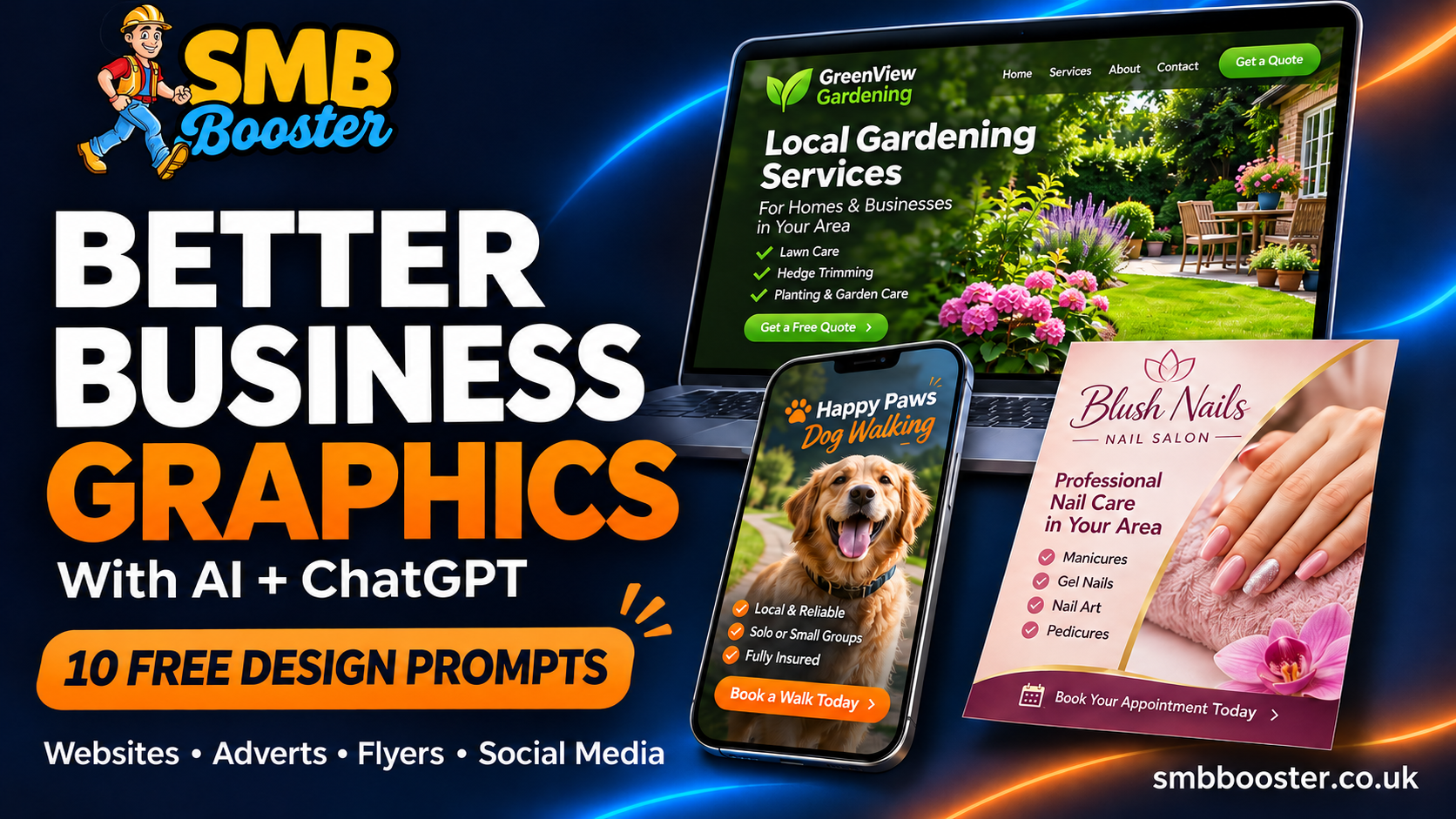
👉 Download our FREE guide: 10 ChatGPT Design Prompts for Better Business Graphics
What Can You Create With ChatGPT?
ChatGPT supports creating images from written descriptions and editing images you upload. That means you can start with an idea, an existing graphic or a photograph you want to use in a new design. OpenAI Help Center
For a local business, useful projects include:
Website banners and supporting illustrations.
Facebook and Instagram promotional graphics.
Flyer concepts for local services.
Seasonal offers and booking announcements.
Customer review cards.
Course and digital product promotional images.
“Meet the owner” posts.
Website portfolio showcases.
The aim is to make your message clear, recognisable and easy to act on. A graphic can look impressive and still fail to explain what you actually offer.
Why Some AI Graphics Look Generic
A vague request leaves the AI to guess your audience, colours, style, wording and layout. For example:
Make me a graphic for my gardening business.
That gives very little direction. A more useful brief would be:
Create a clean, professional social media graphic for a gardening business in Maldon, Essex. Target homeowners who need regular garden maintenance. Use dark green, cream and a small orange accent. Include one attractive garden photograph, a clear headline and a simple call to action. Keep the layout uncluttered and the text readable on a phone.
You’re giving it a purpose, an audience and a visual direction.
Think of a prompt as the brief you would give a designer. The more clearly you explain the job, the less the tool needs to invent.
Start With a Simple Brand Brief
Before generating an image, collect these details:
Business name: What should appear on the graphic?
Audience: Who are you trying to reach?
Service or offer: What are you promoting?
Location: Which town or area matters?
Colours: What colours does your business use?
Headline: What is the main message?
Call to action: What should someone do next?
Upload your logo and any relevant photographs you have permission to use. You can reuse this instruction at the beginning of your prompts:
Use my attached logo and these brand colours: [colours]. My business is [name], providing [services] in [area]. Our customers are [audience]. Keep the design [style], with readable text and generous spacing. Use only the facts I provide. Do not invent prices, reviews, awards or results.
Keep a copy of this brief so your graphics have a consistent starting point.
Creating Images for Your Website
Website images need to work within a page layout. A design that looks good as a social post may be too busy for a homepage. For a hero image, which is the main image near the top of a page, you need to consider where the heading and buttons will sit. Try this prompt:
Create a premium landscape hero image for a [business type] website. Show [subject] on the right, leaving calm, uncluttered space on the left for the website heading. Use [colours and style]. Do not add text, buttons, logos or watermarks. The image should support the page without competing with its message.
Keep important headings and buttons as actual website elements rather than embedding them in the picture. This makes them easier to adapt for mobile screens and keeps the wording selectable and accessible.
Before uploading, resize and compress the image for its intended position. Check that it still looks sharp and that the page loads comfortably on a phone.
Use real photographs for real work. An AI-generated garden or kitchen can illustrate an idea, but it should not appear in your portfolio as a project you completed.
Creating Social Media Graphics
A useful starting point is one post, one message, one action.
For example, a dog walker could promote availability, introduce themselves or share a customer review. Each deserves its own graphic rather than being squeezed into one design.
Try:
Create a 4:5 portrait social media graphic for [business name], a dog walking service in [town]. Use my attached logo and brand colours. Include a friendly dog photograph and this exact headline: “Dog walks while you work.” Add this supporting line: “[approved service detail]” and this CTA: “Message us to discuss availability.” Keep the wording large and leave generous margins.
Check the result at the size someone will actually see it while scrolling. If the smaller text is difficult to read, remove some wording or make it larger. For advice on where and how to share your posts, read our guide to promoting a local business in Facebook groups.
Creating Advertising Graphics
In this world of limited attention spans, an ad needs to explain the offer quickly, so give your AI tool the exact service, the price and any important conditions. Avoid asking it to invent a compelling deal. A useful prompt is:
Create a professional advert for [service]. The headline is “[headline]”. The exact price is “[price and payment frequency]”. Include “[important condition]” and the CTA “[action]”. Use my brand colours and one relevant image. Make the offer easy to understand. Do not invent discounts, deadlines, guarantees or limited availability.
A strong graphic gives you something to test. It does not guarantee enquiries or sales. Make sure the page people reach after clicking matches the advert’s wording, price and offer.
Creating Flyers for Local Businesses
AI can help you explore flyer designs, but a generated image is not automatically a print-ready file. Start with a clear layout:
Create a clean A5 portrait flyer concept for [business], promoting [service] in [area]. Use my attached logo and colours. Include this headline: “[headline]”, these three services: “[services]” and this CTA: “[CTA]”. Leave clear space for my phone number and a QR code, which I will add separately. Keep the design readable and avoid placing important details near the edges.
Before printing, check your printer’s requirements for dimensions, resolution, bleed and file format. Add a genuine, tested QR code separately. Don’t rely on a QR-like pattern generated inside an image.
How to Improve a Result Without Starting Again
When an image is nearly right, give it a specific correction. For example:
Keep the photographs, colours and layout unchanged. Make the headline larger, remove the decorative shapes behind the text and give the call to action more space.
Or:
Keep everything else unchanged. Remove the generated logo and leave a clear area where I can place my original logo.
Focused instructions make the requested change clearer. OpenAI’s image guidance also recommends precise edits and finishing text-heavy designs in a design tool where needed. OpenAI
Always compare the new version with the previous one. Check that details you wanted to keep have survived the edit.
Five Checks Before You Publish
1. Read every word.
Check spelling, prices, dates, phone numbers and website addresses.
2. Check your branding.
Compare the logo with your original. If it has changed, place the original into the finished design yourself.
3. Keep your evidence genuine.
Use actual customer reviews and real before-and-after photographs. Don’t let AI alter the work you are presenting as proof.
4. Test the design on a phone.
A graphic that looks clear on a large monitor may be difficult to read in a social feed.
5. Give people a clear next step.
Ask them to request a quote, book a consultation, visit a relevant page or send a message.
Download Your Free ChatGPT Design Prompt Guide
To help you get started, I’ve put together 10 copy-and-paste prompts for local businesses. The guide covers service adverts, offers, before-and-after layouts, review cards, website showcases, useful tips, seasonal posts, course launches and owner introductions. There’s also a prompt for improving an existing design.
You’ll find a reusable brand brief and practical advice for checking the finished graphics.
👉 Download the FREE SMB Booster Design Prompt Guide
Replace the details in brackets, upload your relevant images and try one prompt at a time.
Give Your Graphics a Website to Send People To
I’m Steve from SMB Booster in Maldon, Essex. I help local businesses build an online presence that clearly explains their services and makes it easy for customers to get in touch.
Your graphics can introduce your business. Your website then gives people somewhere to explore your services, see your work and request a quote.
Our websites start from £25 per month with £0 upfront, including hosting, support and minor updates within your plan.Want to see what yours could look like?